In TimeWriter Professional various default reports are available, arranged in various groupings. Select Reporting | Reports in the Module explorer.
TimeWriter is supplied with a series of Default reports. These are located in a separate table and cannot be customised. You can generate reports on booked hours, master data, leave and budgets. You can use the default reports but you can also create your own reports as long as you are authorised to do so.
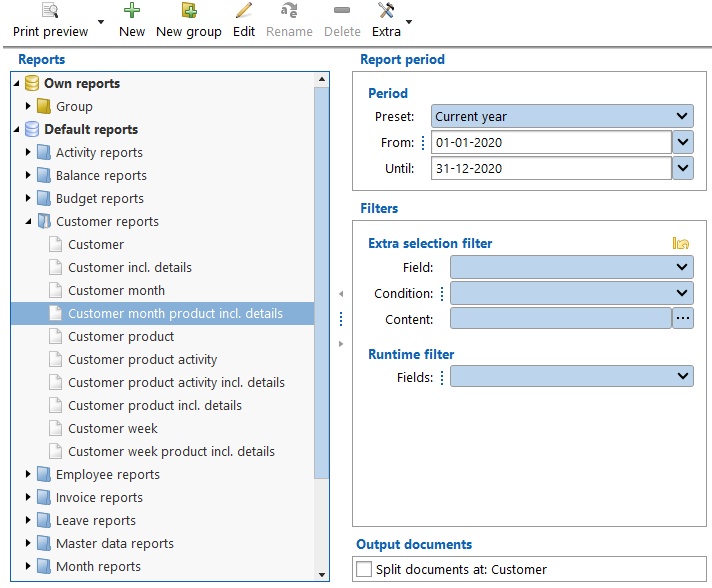
Generating a report
1.Select the correct report group from the list.
2.Select a report from the group.
3.Double click the report or click button Print.
4.A dialog will show where you can enter the required period and/or the required Extra and/or Runtime filters (see also Selection filters).
5.Generate the report by selecting View (print preview to screen) or select the wanted file type **: pdf, xls of xlsx.
** After printing, the report will be opened with the default program for this type of file. The files will be saved in the output folder as set up in Maintenance and settings | Settings | Reporting. Default for this is the Default user documents folder (in Windows: My Documents or Documents).
Designing/changing reports
See Report designer.